Export your website stats
Choose an export method based on what you need:
| Option | Best for |
|---|---|
| Dashboard export | Downloading CSV reports for a specific date range, audience segment or goal, including imported data. |
| Site settings export | Saving all native Plausible stats for a site. Excludes imported data. |
| Stats API | Querying aggregated stats programmatically for custom reports or integrations. |
| Scheduled raw event data exports | Receiving daily event-level data in your own storage for warehousing or custom analysis. |
If you no longer have an active trial or subscription, you can still export your stats from Site Settings → Imports & Exports before your dashboards and stats are deleted. Dashboard exports and the Stats API are unavailable without an active trial or subscription.
Open your Sites page, click the Settings icon next to your website and follow the Export all stats to date instructions below. Request and download your export before deletion.
Export specific time ranges or audience segments
You can export your stats directly from the top chart of your Plausible dashboard. This is the quickest and most convenient option when you want to export specific audience segments or time ranges for reporting purposes. It also allows you to export any of the data that you imported into Plausible from external sources such as Google Analytics. Here's how to do it:
- Select the date range in the top right of your Plausible dashboard to view the specific time period
- Filter your dashboard by any metric that you wish to create a specific audience segment. Do include a goal in the filter (such as external link clicks, file downloads or custom events) if you're looking to export specific conversion metrics
- If applicable, open the options menu (the ⋮ icon in the top right of the chart) and toggle Include imported data to choose whether you want your imported data to be included in the export
- Then open the options menu and click Export stats to download the stats for your chosen view and segment
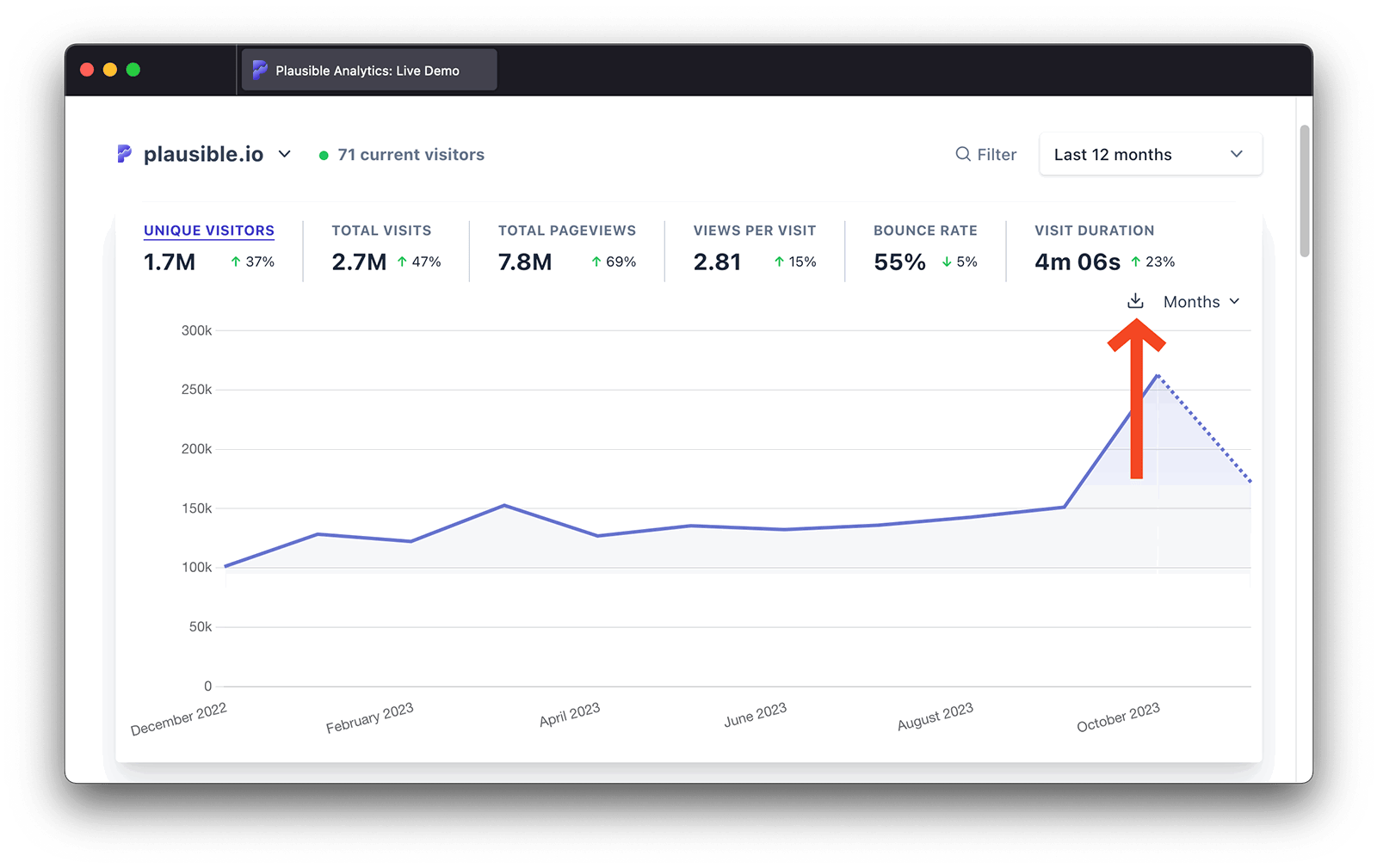
This will export a ZIP file which includes CSV files of the individual reports. You can then use these CSV files to import your stats into Excel or other data analysis tools.
If you exported data for outbound link clicks, file downloads, or 404 errors and want details like URLs, visitors, events, and conversion rates, check the "custom_props.csv" file. The "conversions.csv" file only shows summary data.
Note that for the export to be as quick as possible, the individual CSV files are limited to 300 entries each, while page reports are limited to 100 entries each with this method. For a full data export, refer to the instructions below.
Export all stats to date
Here's how to export all the native data collected for a particular Plausible dashboard to date. This export method is slower, cannot be segmented and is best suited for data portability purposes. It also doesn't include any data that you imported from external sources.
- Open your Sites page and click the Settings icon next to the website you'd like to export. This opens its site settings, even if its dashboard is locked
- In the Imports & Exports section, find the Export Data panel and click on the Export to CSV button
- Your export will be queued and we'll email you when it's ready for download. You'll have 24 hours to download the data after the export is ready
Use the stats API
As an alternative to exporting as CSV files or if you prefer a programmatic way to access your stats, please take a look at our stats API.
Scheduled raw event data exports
If you need event-level data rather than aggregated stats, Plausible offers scheduled raw event data exports as part of our Enterprise plans. These cover advanced use cases such as data warehousing, internal analytics and compliance reporting.
Exports are delivered daily to your S3-compatible object storage. See the full guide for example Parquet files, supported formats and the policy on historical backfills.